Why are WordPress updates important?
What should you check before an update?
Option 1: Update WordPress via Plesk
Option 2: Update WordPress from the dashboard
After the update: Check your website
What should you do if an update causes problems?
Conclusion
Why are WordPress updates important?
Outdated plugins in particular can cause problems. Without regular development, security vulnerabilities may remain unresolved and compatibility issues with newer versions of WordPress and PHP may arise.
Want to learn more about WordPress plugins? In our article Installing WordPress Plugins: Everything You Need to Know, we explain how to install plugins and what to consider when choosing them.
Important to know
Even if WordPress shows no available updates, this does not automatically mean that all installed plugins and themes are secure and compatible. Therefore, regularly check whether your plugins and themes are still actively maintained.
What should you check before an update?
- Check compatibility: Make sure your plugins and themes support the new WordPress version. For major updates, also review the release notes.
- Update carefully: Update important plugins and extensions individually whenever possible, making it easier to identify potential issues.
- Check your website: After updating, test your website to ensure everything is still working correctly.
Creating and restoring a WordPress backup
With the WordPress Toolkit in Plesk, you can easily create a backup of your WordPress installation.
- Log in to your Plesk account.
Select WordPress from the menu on the left.
- Select the desired WordPress installation and click on Back Up / Restore in the options at the top.
- Click on Back Up to create a backup of your website in its current state.
If you need to restore your website, you can also find your backups under Back Up/Restore. Click on the restore icon (circular arrow) next to the desired backup and confirm the restoration.
Important to know
Backups you create yourself take up storage space in your web hosting. Once you have verified that your website is working properly after the update, we recommend deleting any backups you no longer need.
Option 1: Update WordPress via Plesk
- Log in to your Plesk account.
Select WordPress from the menu on the left.
For the WordPress installation you want to update, click on Updates in the bottom left corner.
Here you can see all available updates for WordPress, plugins and themes.
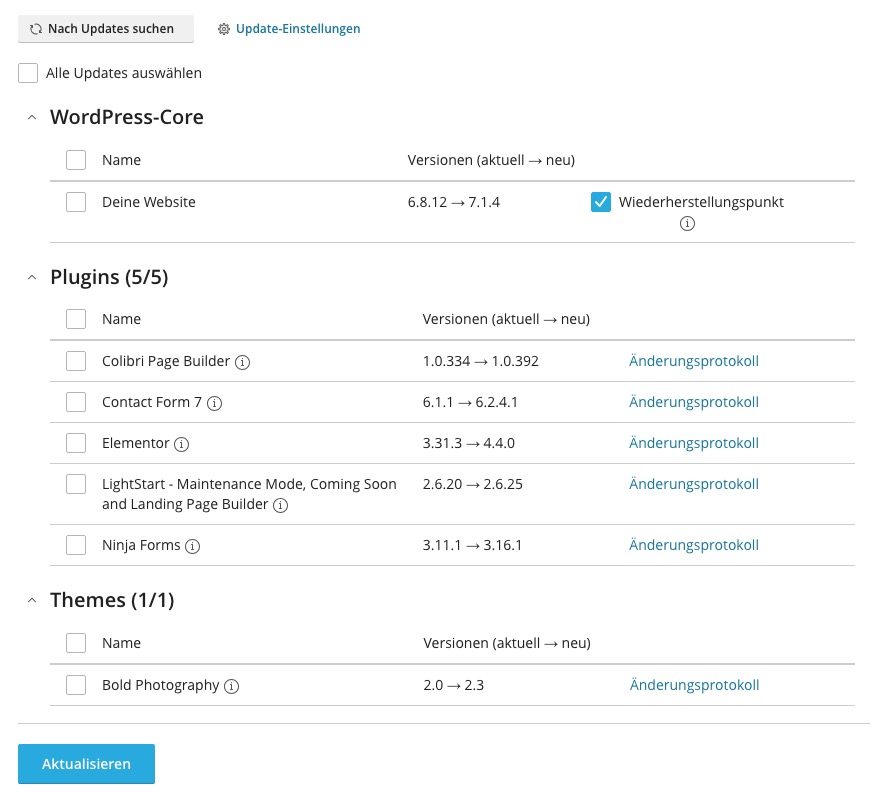
Select the updates you want to install using the checkboxes.
Then click on Update to install the selected updates.
You can click on Check for Updates in the top left corner at any time to check for new available updates.
Once the updates are complete, make sure your website is still working properly.
Option 2: Update WordPress from the dashboard
- Log in to your WordPress dashboard, usually via yourdomain.ch/wp-admin.
- Navigate to Dashboard → Updates.
- Here you'll find available updates for WordPress, plugins and themes.
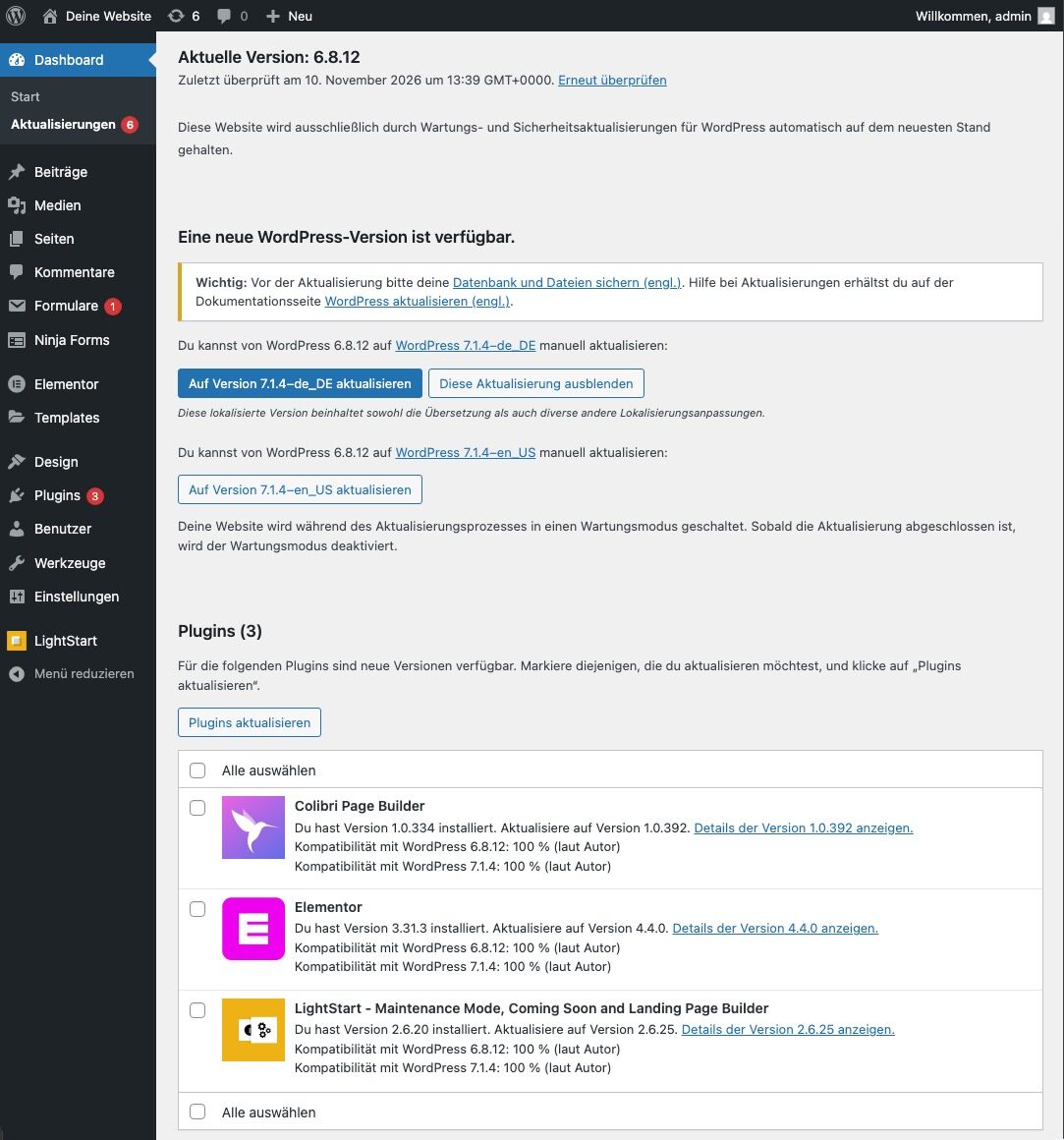
- To update WordPress, click on Update to version X, if an update is available.
- To update plugins or themes, select the extensions you want to update and click on Update Plugins.
Alternatively, you can manage plugins via Plugins → Installed Plugins and themes via Appearance → Themes.
After the update: Check your website
What should you do if an update causes problems?
If you created your own backup before the update, you can restore it directly via the WordPress Toolkit.
If you experience problems after an update, you can contact our support team and request a free restoration.
Conclusion
Regular WordPress updates are essential to keep your website secure and reliable. With the WordPress Toolkit in Plesk or directly from the WordPress dashboard, updates can be carried out easily.
The key is not just to install updates, but also to keep an eye on the compatibility of your plugins and themes and check that your website is working properly afterwards.
WordPress Hosting
Everything you need for your WordPress site – fast, flexible, reliable.
- Optimized for WordPress
- One-click installation
- Professional support